Available since August 2026
Bulk Scene & Image Generator
Turn a finished YouTube script into a scene-by-scene storyboard, then generate the matching AI images in bulk.
Upload your character and style references once, review or edit the scene prompts, and generate the full visual batch using your own Gemini and Runware API keys.
The problem it solves
A stickman or illustrated YouTube video can require dozens or even hundreds of scene images. Generating them one at a time is slow, and keeping the same character and visual style across the entire video is difficult.
The generator takes a finished script, breaks it into visual scenes, creates an editable image prompt for each scene, and generates the images in bulk using the same character and style references throughout.
You can then review the storyboard and regenerate only the scenes that need fixing.
Who it is for
Built for creators making:
- Stickman YouTube videos
- Psychology and self-improvement videos
- Educational explainers
- Illustrated storytelling videos
- Other formats that need large batches of consistent scene images
It is especially useful if you already have a finished script and are currently creating visual prompts or images one scene at a time.
How it works
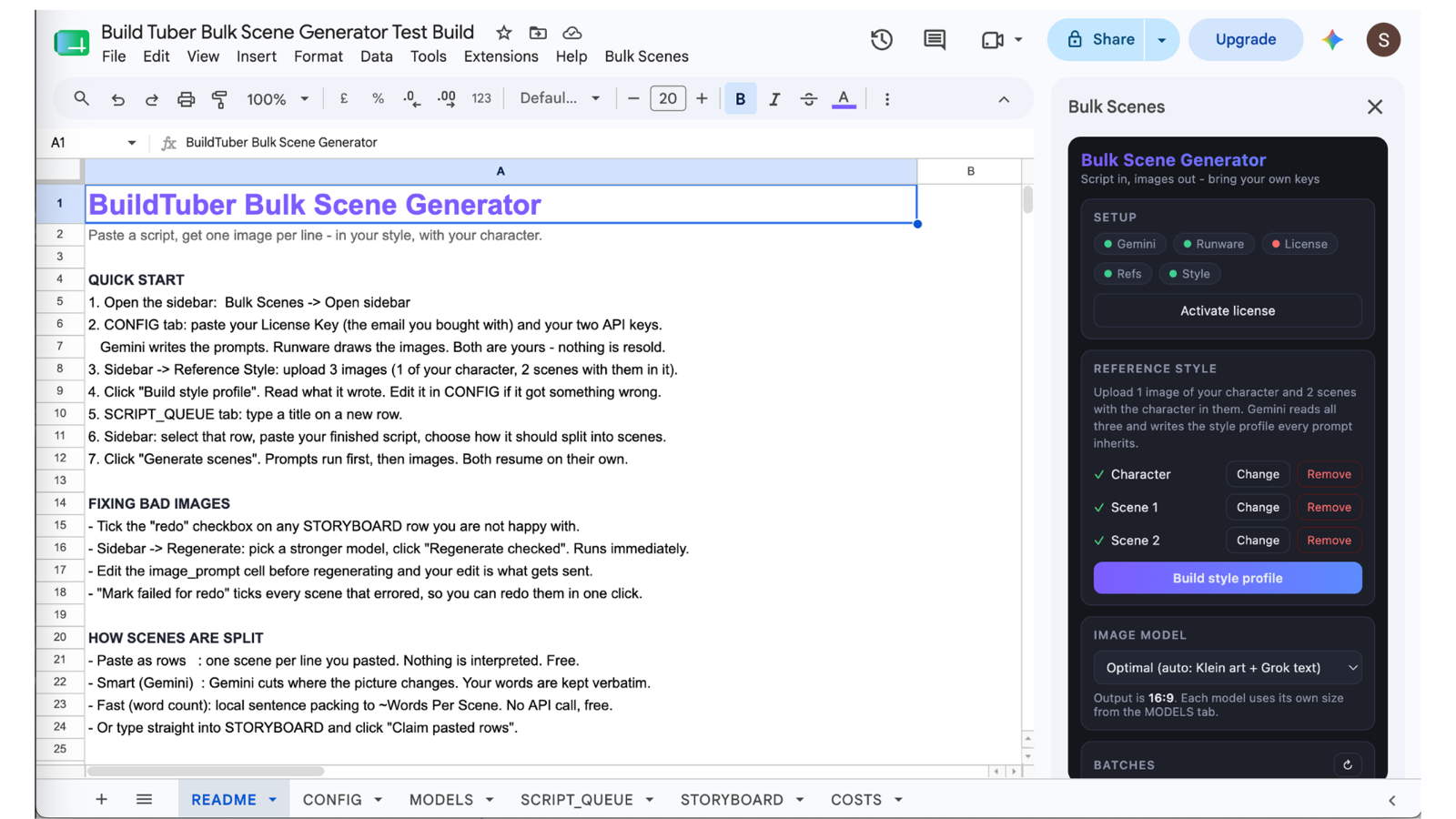
The product runs inside Google Sheets with a custom Apps Script sidebar. Add your Gemini and Runware API keys, upload your character and style references, and build the reusable style profile once.
For each finished script, the generator:
- Breaks the script into visual scenes
- Creates a storyboard with one editable image prompt per scene
- Carries your character and visual style into every prompt
- Generates the scene images in bulk through Runware
- Keeps the scenes and images in script order
- Lets you edit and regenerate individual scenes without restarting the batch
The style profile can be reused for later videos, which helps you maintain a recognizable character and visual language across a channel.
Delivered as: A Google Sheet you copy to your own Google account, with the sidebar and setup instructions built in.
What you get
- The complete Google Sheets Bulk Scene & Image Generator
- A custom sidebar for uploading character and style references and building the style profile
- A README tab with setup and quick-start instructions
- Editable scene-prompt instructions, so you can change how scenes get described
- Batch generation across a whole script, with per-scene regeneration
- A reusable style profile, so a later video keeps the same character and look
- A cost tracker, so you can read actual Gemini and Runware usage per video
What it does not include
- Gemini and Runware API credit. Google and Runware bill you directly, at their rates.
- The script. This product starts from a finished script rather than writing one.
- Voiceover, editing and rendering. It stops at the images.
From finished script to visual storyboard
You supply
- A finished YouTube script
- A character reference image
- One or more visual style references
- Your own Gemini API key
- Your own Runware API key
It produces
- A scene-by-scene storyboard
- An editable visual prompt for every scene
- A reusable character and style profile
- AI-generated images for the full batch
- Images kept in the same order as the script
- Individual scene regeneration when an output needs fixing
What it costs to run
The product is a one-time purchase. Generation is billed by Google and by Runware through your own accounts, and BuildTuber adds no usage markup.
The figures below are read off a Runware billing dashboard for generations that actually ran, on 13 August 2026. On a typical 8-minute video of around 125 images:
- FLUX.2 Klein, at $0.00169 an image: about $0.21
- Grok Imagine, at $0.022 an image: about $2.75
Seedream 4.5 is priced at $0.030 an image in the Sheet, which projects to about $3.75 for the same batch. That figure is a rate card rather than a bill — no Seedream batch has been run and measured — so treat it as an estimate.
Price is not the only trade-off. Klein returns an image in about two seconds and Grok takes fifteen to twenty, so a 200-scene batch on Grok is the difference between minutes and most of an hour. You can also mix models across a single video, using Klein for most scenes and Grok Imagine or Seedream only where the extra quality is worth paying for.
Failed generations are not billed, so a scene that errors and gets retried costs you once rather than twice.
These numbers cover image generation only. Scene-prompt writing runs through the Gemini API and is billed separately by Google. It is small, but it has not been measured, so no figure is stated for it here. The Sheet includes a cost tracker, so you can read your own usage rather than trust the numbers above.
Billed directly to you by Google (Gemini), Runware. Nothing is added on top.
Setting it up
- Copy the Sheet to your own Google account
- Open the sidebar from the BuildTuber menu
- Create a Gemini API key at aistudio.google.com
- Create a Runware account, generate an API key, and add credit
- Paste both keys where the README asks for them
- Upload your character reference and visual style references, and build the style profile once
Your API key, your account, your bill
Scene-prompt writing runs on your own Gemini API key, and image generation runs through your own Runware account, so you are billed directly by Google and by Runware for what you generate, and nothing on top.
Frequently asked questions
Why does this need a Gemini key as well as a Runware key?
The two keys do different jobs. Gemini reads the script and writes a scene prompt for each frame; Runware takes those prompts and renders the images against your reference character. Google bills you for the first, Runware bills you for the second, and neither charge goes through this product.
How does it keep the same character consistent across AI images?
You upload a character reference and visual style examples before generating the batch. The generator builds those references into the style profile used across the scene prompts, giving the image model a consistent visual anchor instead of starting from scratch for every scene. Cheaper AI image models like Klein can change faces, proportions, clothing, or details between generations, so individual scenes may occasionally need to be regenerated.
Does it turn a script into a storyboard?
Yes. The generator reads the finished script, divides it into visual scenes, and creates one editable image prompt for each scene. Those scenes appear in script order, giving you a visual storyboard before you spend money generating the complete image batch. You can review or rewrite any scene before generation.
Can I edit the AI storyboard before generating images?
Yes. Every scene prompt remains editable inside the Sheet. You can change the action, composition, expression, background, camera angle, or visual instructions before sending the scene to the image model.
Can I regenerate one image without regenerating the whole video?
Yes. Edit or mark the individual scene and regenerate it separately. Completed scenes stay untouched, so one bad image does not require restarting the full batch.
One payment, yours to keep
No subscription. You run it on your own key and pay the provider directly for what you use.
Get the build guides as they go out.
One email when a new guide ships. The full method, not a teaser. Unsubscribe whenever.