Available since August 2026
Faceless YouTube Script to Video Generator
Start with a finished script. End with scene images, voiceover, per-line timestamps, a render plan and a 1080p MP4.
Paste your narration into the Sheet one scene per row. From there it automates the production stages that follow: an image prompt for every scene, the frames themselves, the narration, the timing data and the render plan, all billed to your own Gemini, ElevenLabs and Runware API keys.
Not ready to buy? Install the BuildTuber Faceless Video Generator from the Google Workspace Marketplace and test the workflow on up to 25 scenes first. No purchase required.
The problem it solves
Once the script is finished, the slow part is everything that comes after it: generating each image, downloading it, renaming it, matching it back to the right line, then dragging 150 to 200 scenes onto a timeline and syncing them to the narration by hand.
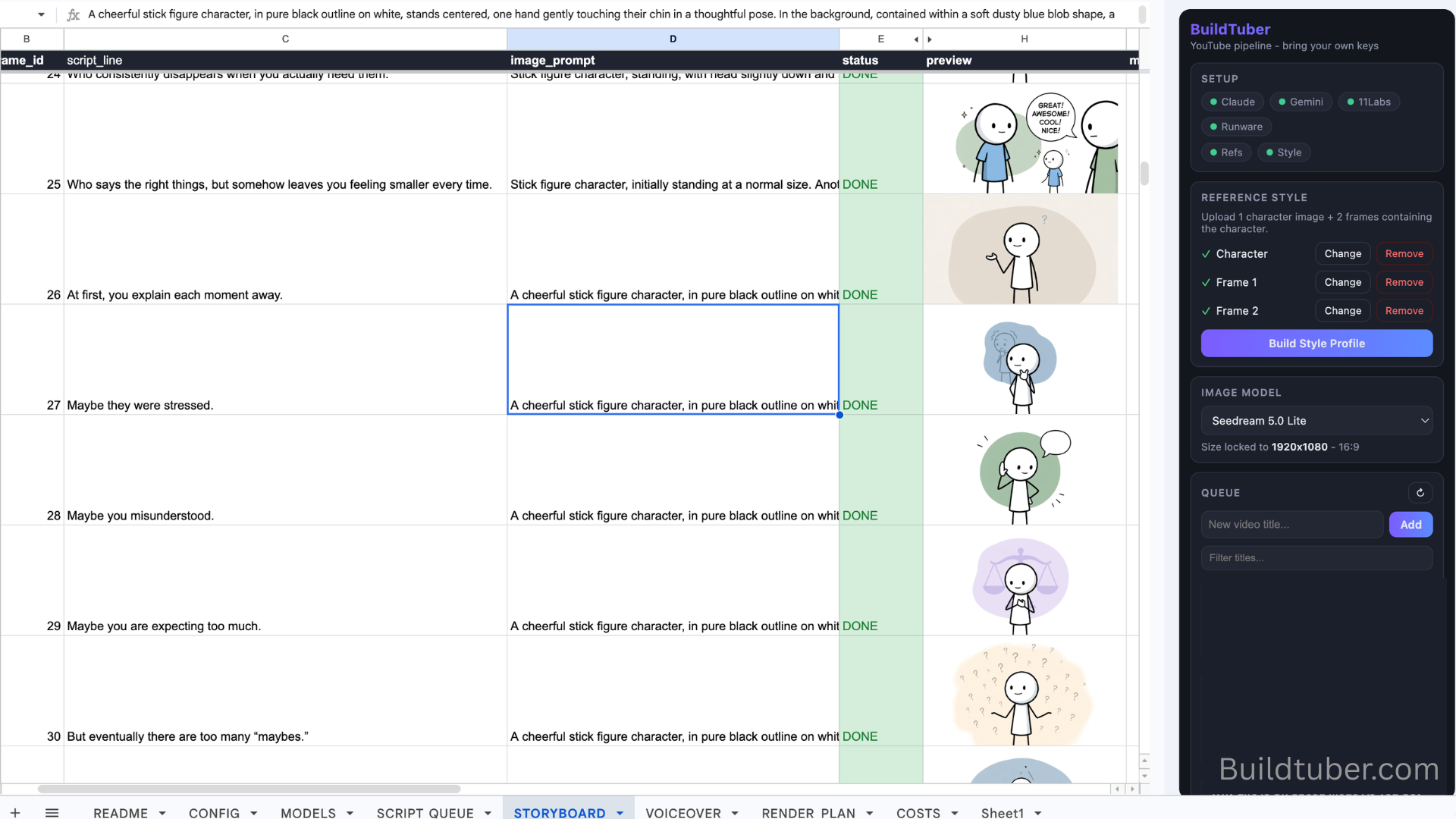
This keeps all of that in one Sheet. Each row holds one scene's line, its image prompt, the generated frame and its timing. Because ElevenLabs returns the start and end time of every line, each image already knows how long it stays on screen, so the final cut is assembled from data rather than by eye.
Who it is for
Built for creators making:
- Stickman YouTube videos
- Psychology and self-improvement videos
- Educational explainers
- Business and finance content
- Other scene-based faceless formats
It assumes you already write your own scripts. If the script itself is what you need generated, start one step earlier with the Ultra-Long-Form YouTube Script Engine, listed at /products/long-form-script-engine. That one writes the narration; this one turns a finished narration into a video. They are built to be used in that order.
How it works
The workflow runs inside Google Sheets. You install the BuildTuber Faceless Video Generator add-on from the Google Workspace Marketplace, run setup, and the required sheets and sidebar are created for you. The final MP4 is still rendered through the companion Google Colab notebook.
Upload three reference images and build the style profile once.
For each video:
- Add the title in the sidebar, which gives it an id
- Paste your narration into the STORYBOARD sheet, one scene per row
- Click Generate Video Assets
- Gemini writes an image prompt for every row
- Runware generates each frame using your character and style references
- ElevenLabs narrates the script and returns per-line timings
- The render plan is built from those timings
- Copy the Render ID into the Colab notebook and run it
Steps four to seven run in order without you moving a file between tools. The finished MP4 is saved back to your Drive.
Delivered as: A Google Sheets add-on installed from the Google Workspace Marketplace, plus a Colab notebook for rendering.
Try it before you buy
The same workflow is now available as a Google Sheets add-on in the Google Workspace Marketplace.
Install it into Google Sheets and run a real 25-scene test before deciding whether you need the full version. You can see how the storyboard, image prompts, generated frames, voiceover timing and render plan fit together using your own script.
If the workflow suits your channel, the one-time purchase unlocks the full production system without a monthly BuildTuber subscription.
What you get
- The complete Google Sheets video pipeline, installed as an add-on
- A sidebar for reference images, model choice, and the look and sound settings
- The BuildTuber render notebook that produces the final MP4 in Colab
- A README tab with setup and quick-start instructions
- A MODELS tab you can edit, including an Optimal mode that picks per scene
- Per-scene redo, so one weak frame does not mean regenerating the batch
- An editable sound-effect plan
- A per-stage cost log
What it does not include
- Gemini, ElevenLabs and Runware API credit. All three bill you directly, at their rates.
- The script. You write the narration and paste it in; this product does not write it.
- Thumbnails.
- The decisions that make a video worth publishing: the topic, the angle, the hook and the final quality check.
From a finished script to a rendered MP4
You supply
- A finished script, pasted one scene per row
- Three API keys: Gemini, ElevenLabs and Runware
- Three reference images: one character, plus two frames containing that character
- A chapter number per scene, which is where the video fades to black
It produces
- An editable image prompt for every scene
- A generated frame per scene, previewed inline in the Sheet
- Voiceover audio, generated in narration chunks
- Per-line start and end timings from ElevenLabs
- A sound-effect plan, written before any asset is paid for
- A render plan with the on-screen duration of every frame
- A finished 1920x1080 MP4, rendered in Colab and saved to Drive
What it costs to run
The product is a one-time purchase. Generation is billed by Google, ElevenLabs and Runware through your own accounts, and BuildTuber adds no usage markup. The Colab render is free.
For a six-minute video of around 200 scenes, on the cheapest image model:
- Images: about $0.34 on FLUX.2 Klein, at $0.00169 an image. That figure is read off a Runware billing dashboard for generations that actually ran, on 13 August 2026.
- Voiceover: $0.64 to $0.81. Two logged runs narrated 6,373 and 8,090 characters, which the Sheet costs at $0.10 per 1,000 characters.
- Rendering: free.
That puts a six-minute video at roughly $1 to $1.25 in direct generation cost. The upper end leaves room for regenerating weak scenes, which bills again.
Three things change that number. Klein is the cheapest model on the rate card and it is poor at text; Grok at $0.022 an image would put the same 200 scenes at $4.40 rather than $0.34, and Seedream and Qwen sit higher still. Narration is billed per character, so the 20 to 30 minute videos this is built for cost several times the six-minute figure on voiceover alone. And scene-prompt writing through Gemini is billed separately by Google and has never been read off a bill, so it is not in the total at all.
The voiceover figure is also the Sheet's own arithmetic rather than a reconciled ElevenLabs invoice, and ElevenLabs' real per-character rate varies by plan.
The COSTS tab logs every stage, but it calculates from the per-model rate card rather than reading your bill, and labels each row an estimate. Treat it as a running projection and check your provider dashboards for what you were actually charged.
Billed directly to you by Google (Gemini), ElevenLabs, Runware. Nothing is added on top.
Setting it up
- Install the BuildTuber Faceless Video Generator add-on from the Google Workspace Marketplace
- Open a Google Sheet and choose Extensions, then BuildTuber, then Run Setup, which creates the sheets and the sidebar for you
- Paste your Gemini, ElevenLabs and Runware API keys into the CONFIG sheet. The first 25 scenes run on BuildTuber's keys, so this can wait until after the free trial
- Upload three reference images in the sidebar: one character, plus two frames with the character
- Click Build Style Profile, which reads those images into a reusable style
- Add a video title in the sidebar, then paste your narration into STORYBOARD
- Open the BuildTuber render notebook in Colab and paste in the Render ID when the sidebar shows one
Your API key, your account, your bill
There are no credits to buy from BuildTuber and no usage markup. You create your own Google, ElevenLabs and Runware accounts, paste those three keys into the CONFIG sheet, and each provider bills you directly at its own published rates. Cancel or replace any of them without touching the rest of the pipeline.
What you get in return is visibility. The MODELS tab carries a per-model cost field you can edit, so if a provider changes its pricing you correct one cell rather than wait for an update. The COSTS tab logs a projected cost per stage, so you can see where the money is going before the invoices arrive. Both are projections from a rate card, not a reading of your bill, so your provider dashboards remain the source of truth for what you were actually charged.
Frequently asked questions
Can I try the Faceless Video Generator before buying it?
Yes. Install the BuildTuber Faceless Video Generator from the Google Workspace Marketplace and test the workflow with up to 25 scenes. It is enough to run a short sample through the same basic production flow before deciding whether you want the full version.
Do I need to know how to code?
No. You install the add-on from the Google Workspace Marketplace, run setup from the Extensions menu, and drive the whole thing from a sidebar. The render runs in Colab by choosing Runtime, then Run all. For the free trial that is all you need. Past it you also need three API keys, which means creating accounts with Google, ElevenLabs and Runware and adding credit to them.
Which API keys do I need?
Three. Gemini writes an image prompt for each scene, Runware renders the frames, and ElevenLabs narrates the script and returns the per-line timings. The free trial needs none of them. The first 25 scenes run on BuildTuber's own keys, so you can see the whole workflow before opening any provider accounts. After that all three are your own accounts and bill you directly. There is no Anthropic or Claude key, because this product does not write the script.
Does it write the script for me?
No. You write the narration and paste it into the STORYBOARD sheet, one scene per row, along with a chapter number for each line. This is deliberate. The script is the part that decides whether a video is worth publishing, and it is the last thing worth handing over.
Does it create the full video automatically?
It runs the stages in order without you moving files between tools: image prompts, frames, voiceover, timings and the render plan. Two things are not hands-off. You review the frames and redo any that came out badly, and you start the render yourself by pasting the Render ID into the Colab notebook.
Can I fix individual AI images?
Yes. Tick the redo checkbox on any storyboard row, pick a stronger model in the sidebar, and regenerate only the checked rows. Everything else stays untouched. You can also edit the image prompt before regenerating, and your edit is what gets sent. Mark failed for redo ticks every frame that errored so you can retry them in one click. If you regenerate after the render plan is built, the render is marked pending and needs re-running so the new images reach the video.
Can I use this as a script-to-video AI workflow?
Yes, from a finished script onward. Paste the narration in one scene per row and the Sheet takes it the rest of the way: an image prompt per scene, the frames, the voiceover, the per-line timings, the render plan and the final MP4. What it will not do is the first step. It does not come up with the topic, and it does not write the script. If you want a script-to-video tool that also writes the script, this is only the second half of that, and the Ultra-Long-Form YouTube Script Engine is the first.
Is this only for stickman videos?
No. It is built for scene-based faceless videos generally, and works for psychology, educational, business and explainer formats using your own visual references. The style comes from the three reference images you upload, so what it produces looks like whatever you give it.
How many videos can I make in a day?
Around two on a free Google account. Apps Script gives free accounts roughly 90 minutes of total trigger runtime per day, and a full video uses a meaningful share of that. A Workspace account raises the quota.
How long can the videos be?
It targets 20 to 30 minutes, and output is locked to 16:9 at 1920x1080. Cost scales with length, mostly through narration, which is billed per character.
One payment, yours to keep
No subscription. You run it on your own key and pay the provider directly for what you use.
Get the build guides as they go out.
One email when a new guide ships. The full method, not a teaser. Unsubscribe whenever.